CyberShieldCare Blog

Online Safety & Computer Help

Welcome to the CyberShieldCare Blog. Here we share simple, easy-to-follow guides for home users especially customers aged 45+ to help you stay safer online and keep your computer running smoothly.

Expert Articles

Stay Safe with Our Cybersecurity Guides

Our blog focuses on cybersecurity tips for individuals, email safety and spam protection, scam awareness and safe browsing, Windows support and performance tips, printer troubleshooting basics, and account security and password protection.

Recognizing Spam Emails and Phishing Scams
Jan 15, 2026 Security Tips 8 min read

How to Recognize and Avoid Spam Emails & Phishing Scams

Learn the warning signs of dangerous emails and protect yourself from cyber criminals who try to steal your personal information through deceptive messages.

Understanding the Threat

Every day, millions of Americans receive fraudulent emails designed to trick them into revealing sensitive information like passwords, credit card numbers, and Social Security numbers. These attacks, known as phishing scams, have become increasingly sophisticated and can fool even the most tech-savvy individuals. As a home user, understanding how to identify these threats is your first line of defense against cybercriminals.

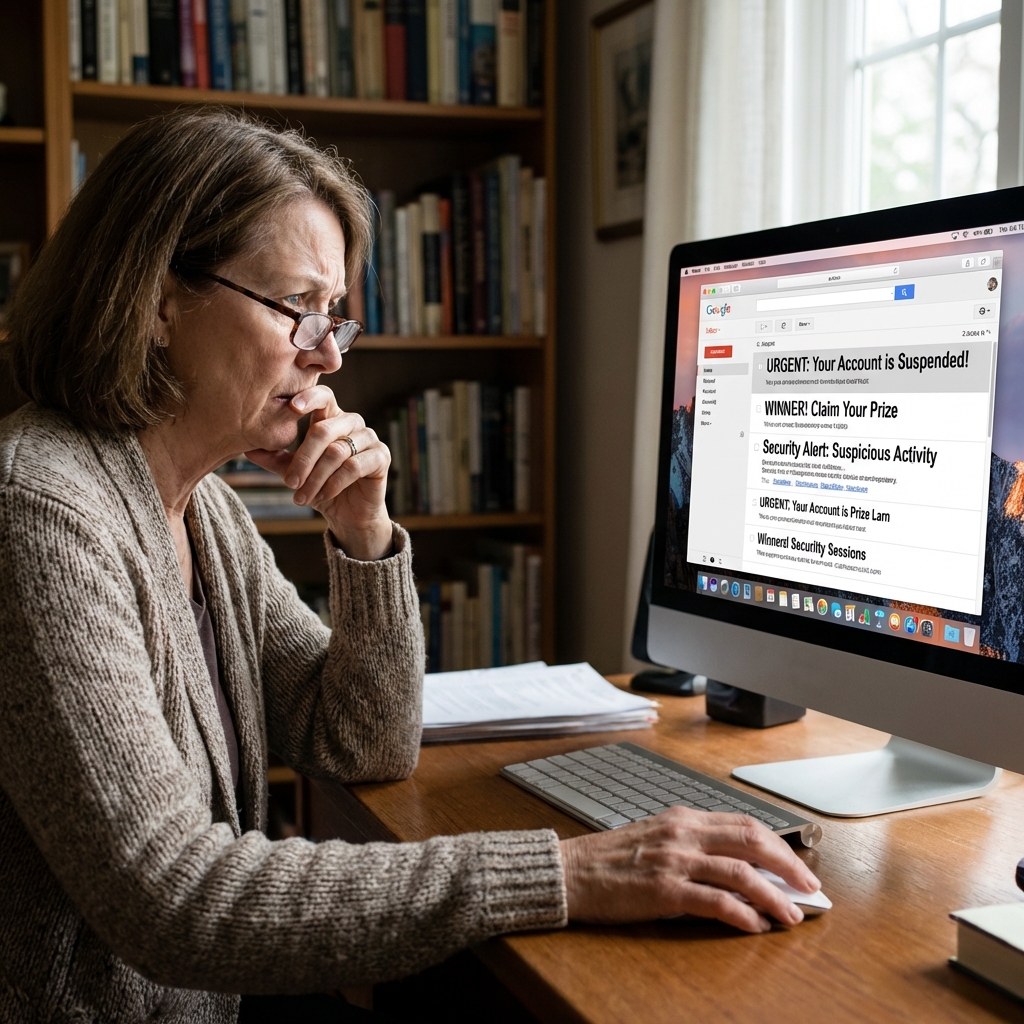
Phishing emails often impersonate trusted organizations such as banks, government agencies, popular retailers, or even friends and family members. They create a sense of urgency to pressure you into acting quickly without thinking critically about the request.

Warning Signs of a Phishing Email

Learning to spot the red flags in suspicious emails can save you from becoming a victim. Here are the most common indicators that an email may be a scam:

  • Urgent or Threatening Language: Messages claiming your account will be closed, you owe money, or legal action will be taken unless you act immediately are almost always scams.
  • Generic Greetings: Legitimate companies usually address you by name. Emails starting with "Dear Customer" or "Dear User" are often fraudulent.
  • Suspicious Sender Addresses: Check the actual email address, not just the display name. Scammers often use addresses that look similar to real companies but have slight misspellings.
  • Poor Grammar and Spelling: Many phishing emails contain obvious errors because they're often created by non-native English speakers or rushed out in bulk.
  • Unexpected Attachments: Never open attachments from unknown senders. They may contain malware that can infect your computer.
  • Requests for Personal Information: Legitimate organizations will never ask for passwords, Social Security numbers, or full credit card details via email.

Pro Tip: When in doubt, don't click any links in the email. Instead, open your web browser and manually type the official website address to access your account.

How to Protect Yourself

Taking proactive steps to protect yourself from phishing attacks is essential in today's digital world. Here's what you can do:

  • Hover Over Links: Before clicking any link, hover your mouse over it to preview the actual URL. If it looks suspicious or doesn't match the supposed sender, don't click it.
  • Enable Two-Factor Authentication: Add an extra layer of security to your important accounts. Even if someone steals your password, they won't be able to access your account without the second verification step.
  • Keep Software Updated: Regularly update your operating system, web browser, and antivirus software to protect against the latest threats.
  • Use Spam Filters: Most email providers have built-in spam filters. Make sure yours is enabled and set to a reasonable sensitivity level.
  • Verify Suspicious Requests: If you receive an unexpected email from a company or person you know, call them directly using a phone number from their official website not from the email.

What to Do If You've Been Scammed

If you believe you've fallen victim to a phishing scam, take immediate action:

  • Change your passwords for any accounts that may have been compromised
  • Contact your bank immediately if you shared financial information
  • Run a full antivirus scan on your computer
  • Report the phishing attempt to the FTC at reportfraud.ftc.gov
  • Monitor your credit reports for any unauthorized activity

Remember, staying vigilant is your best defense. If something feels off about an email, trust your instincts and verify before taking action. CyberShieldCare is always here to help you navigate these challenges safely.
Remote IT Support Benefits
Jan 10, 2026 IT Support 7 min read

Benefits of Remote IT Support for Seniors & Home Users

Discover why remote technical support is the safest, most convenient way for home users to get help with their computers without leaving the comfort of their homes.

The Evolution of Technical Support

Gone are the days when getting help with your computer meant unplugging everything, loading it into your car, and driving to a repair shop. Today, remote IT support offers a revolutionary way to solve technical problems quickly and conveniently from the comfort of your own home. This is especially beneficial for seniors and home users who may find it difficult or inconvenient to transport their equipment.

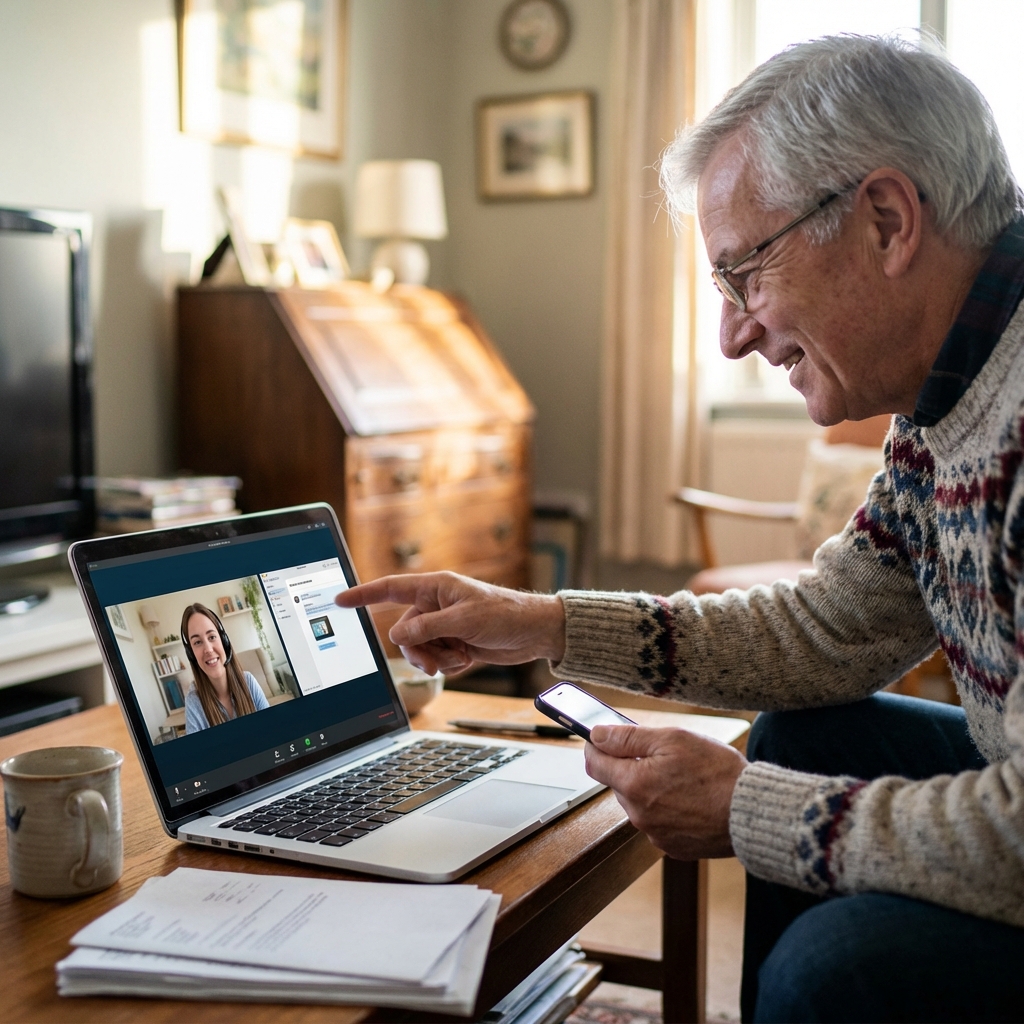
Remote support allows trained technicians to connect to your computer over the internet and diagnose and fix problems as if they were sitting right next to you. This technology has transformed how we approach computer repair and maintenance, making expert help accessible to everyone.

Why Remote Support is Ideal for Home Users

There are many compelling reasons why remote IT support has become the preferred choice for millions of Americans:

  • Convenience: No need to disconnect cables, transport heavy equipment, or wait in line at a repair shop. Help comes directly to you through your internet connection.
  • Speed: Most issues can be resolved in a single session, often within 30-60 minutes. No more waiting days or weeks to get your computer back from a repair shop.
  • Transparency: You can watch everything the technician does on your screen. This educational experience helps you understand your computer better and may prevent similar issues in the future.
  • Safety: Especially important for seniors, there's no need to invite strangers into your home or travel to unfamiliar locations. All help is provided remotely.
  • Cost-Effective: Without the overhead costs of a physical store, remote support services often provide better value for your money.

Your Privacy Matters: Reputable remote support services like CyberShieldCare give you complete control. You can see everything being done, and the connection ends the moment the session is over. Your data stays private and secure.

What Can Be Fixed Remotely?

You might be surprised at how many computer problems can be solved without anyone physically touching your device. Remote technicians can help with:

  • Virus and malware removal
  • Slow computer performance optimization
  • Software installation and updates
  • Email setup and troubleshooting
  • Printer configuration issues
  • Browser problems and unwanted pop-ups
  • Password recovery and account access
  • Data backup setup and recovery
  • Windows updates and error fixes
  • Security software installation and configuration

How Remote Support Works

The process is simpler than you might think:

  • Step 1: Contact CyberShieldCare by phone or email to describe your issue.
  • Step 2: A technician will provide you with a simple code to enter on a secure website.
  • Step 3: Once you authorize the connection, the technician can see your screen and control your mouse to fix the problem.
  • Step 4: You watch as the issue is resolved, and the technician explains what they're doing.
  • Step 5: When finished, you simply close the program and the connection is completely ended.

Choosing the Right Remote Support Provider

Not all remote support services are created equal. When selecting a provider, look for these important qualities:

  • Patient, friendly technicians who explain things clearly
  • Transparent pricing with no hidden fees
  • Secure connection technology
  • Good reviews and reputation
  • Money-back guarantee if the problem isn't resolved

At CyberShieldCare, we pride ourselves on providing patient, step-by-step support that makes technology accessible to everyone, regardless of their technical experience. Our goal is not just to fix your problem, but to empower you with knowledge to use your computer more confidently.

Password Security
Jan 5, 2026 Security 10 min read

Essential Password Security Tips to Protect Your Accounts

Your passwords are the keys to your digital life. Learn how to create strong, memorable passwords and set up two-factor authentication for maximum protection.

Why Password Security Matters More Than Ever

In today's connected world, your passwords protect everything from your email and banking to your social media and shopping accounts. A single compromised password can lead to identity theft, financial loss, and months of stress trying to recover your accounts. Despite the risks, many people still use weak, easily guessable passwords often the same password across multiple sites.

Cybercriminals have sophisticated tools that can test millions of password combinations per second. Common passwords like "123456," "password," or your pet's name can be cracked in seconds. It's time to take your password security seriously.

Creating Strong Passwords

A strong password is your first and most important line of defense against hackers. Here's how to create passwords that are both secure and memorable:

  • Length is Key: Use at least 12-16 characters. Longer passwords are exponentially harder to crack.
  • Mix It Up: Combine uppercase and lowercase letters, numbers, and special characters (!@#$%^&*).
  • Avoid Personal Information: Never use birthdays, anniversaries, names of family members or pets, addresses, or phone numbers.
  • Use Passphrases: Instead of a single word, use a phrase that's meaningful to you. For example, "I love pizza on Fridays!" could become "1L0v3P!zz@0nFr1d@y5!"
  • Never Reuse Passwords: Each account should have its own unique password. If one account is compromised, others won't be affected.

Password Tip: Create a memorable base phrase and modify it for each website. For example, "MyDog$pot2026" for general use could become "MyDog$pot2026_BK" for your bank, making each password unique but easy to remember.

Understanding Two-Factor Authentication (2FA)

Two-factor authentication adds an extra layer of security to your accounts. Even if someone steals your password, they can't access your account without the second verification step. Here's how it works:

  • Something You Know: Your password (the first factor)
  • Something You Have: Usually your phone, which receives a code via text message or an authenticator app (the second factor)

When you enable 2FA, logging in requires both your password AND a unique code sent to your phone. This means even if a criminal somehow gets your password, they still can't access your account without physical access to your phone.

How to Set Up Two-Factor Authentication

Most major services now offer 2FA. Here's how to enable it on common platforms:

  • Gmail/Google: Go to your Google Account → Security → 2-Step Verification → Get Started
  • Facebook: Settings & Privacy → Settings → Security and Login → Two-Factor Authentication
  • Amazon: Account & Lists → Login & Security → Two-Step Verification Settings
  • Your Bank: Log in to online banking and look for Security Settings or Two-Factor Authentication options

Managing Multiple Passwords

With each account needing a unique password, remembering them all can seem impossible. Here are some solutions:

  • Password Managers: Applications like LastPass, Dashlane, or 1Password securely store all your passwords. You only need to remember one master password to access them all.
  • Written Records: If you prefer not to use technology, write your passwords in a notebook kept in a secure location at home never near your computer or in your wallet.
  • Browser Password Saving: Modern browsers can save passwords, but this is less secure than a dedicated password manager. Only use this feature on your personal, protected computer.

What to Do If Your Password Is Compromised

If you suspect your password has been stolen or an account has been hacked, take immediate action:

  • Change the password immediately on the affected account and any other accounts where you used the same password
  • Enable two-factor authentication if you haven't already
  • Check for any unauthorized activity or changes to your account settings
  • If it's a financial account, contact the institution immediately
  • Run a full antivirus scan on your computer
  • Consider monitoring your credit report for suspicious activity

Remember, good password hygiene is a habit that protects your entire digital life. Take the time today to strengthen your passwords and enable two-factor authentication on your most important accounts. Your future self will thank you!

Educational Disclaimer

The information provided on this blog is for general educational purposes only. While we strive to provide accurate and up-to-date information, everyone's situation is unique. For personalized support tailored to your specific needs, please contact CyberShieldCare for professional remote assistance.